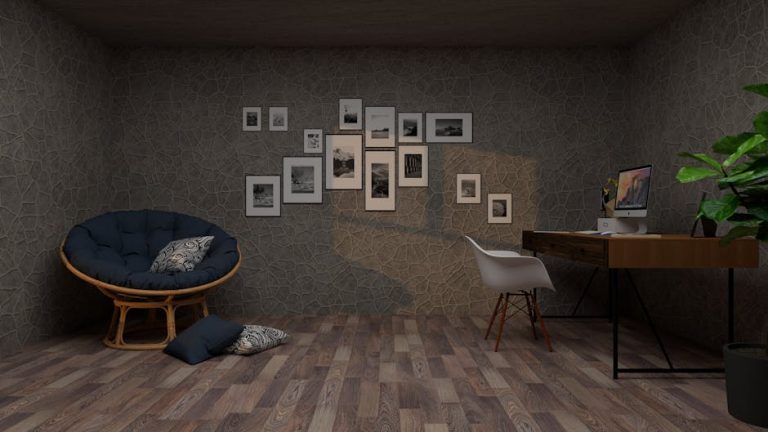
How to set up an ergonomic home office desk
The Complete Ergonomic Home Office Desk Setup Posture Guide: Tips for Maximum Comfort and Productivity
Creating an ergonomic home office desk setup has become crucial for millions of remote workers who have discovered that their dining room table simply won’t cut it for long-term productivity and health. With the average office worker spending over 8 hours daily at their desk, poor posture and inadequate workspace design can lead to chronic pain, decreased productivity, and long-term health issues including carpal tunnel syndrome, neck strain, and lower back problems.
This comprehensive posture guide will walk you through every aspect of setting up an ergonomic workspace that supports your body’s natural alignment while boosting your work performance. From monitor positioning to chair selection, keyboard placement to lighting considerations, we’ll cover the essential tips that transform any space into a health-conscious, productivity-enhancing work environment.
The benefits of proper ergonomic desk setup extend far beyond comfort. Studies show that workers with ergonomically optimized workstations report 40% less back pain, 25% fewer sick days, and up to 15% increased productivity. Whether you’re working from a spare bedroom, kitchen counter, or dedicated office space, the principles in this guide will help you create a workspace that works with your body, not against it.
Table of Contents
- Understanding Ergonomic Principles
- Essential Equipment for Your Ergonomic Setup
- Proper Monitor and Screen Positioning
- Chair Selection and Adjustment
- Keyboard, Mouse, and Desk Setup
- Frequently Asked Questions
- Conclusion
Understanding Ergonomic Principles
Ergonomics is the science of designing workspaces to fit the worker’s needs, reducing strain and increasing efficiency. The foundation of any ergonomic home office desk setup rests on understanding how your body naturally functions and what positions minimize stress on your musculoskeletal system.
The primary goal of ergonomic design is maintaining neutral postures throughout your workday. A neutral posture keeps your joints in their natural, unstressed positions, reducing muscle tension and preventing repetitive strain injuries. This means your head should be balanced over your shoulders, shoulders relaxed and not hunched forward, elbows at approximately 90-degree angles, wrists straight rather than bent up or down, and feet flat on the floor with thighs parallel to the ground.
Poor posture consequences extend beyond immediate discomfort. Forward head posture, common among computer users, can strain cervical vertebrae and lead to headaches, while hunched shoulders contribute to thoracic outlet syndrome. Prolonged sitting with improper lumbar support weakens core muscles and can cause disc compression, leading to chronic lower back pain affecting up to 80% of adults at some point in their lives.
Research from the Occupational Safety and Health Administration (OSHA) indicates that musculoskeletal disorders account for 33% of all worker injury and illness cases. However, implementing proper ergonomic principles can reduce these issues by up to 59%. The key is understanding that small adjustments compound over time – a monitor raised by 2 inches or a keyboard tilted at the correct angle can prevent years of accumulated strain.
Micro-breaks are equally important as physical setup. The 20-20-20 rule suggests every 20 minutes, look at something 20 feet away for 20 seconds, while movement breaks every hour help prevent muscle stiffness and improve circulation. Your ergonomic workspace should facilitate these healthy habits rather than discourage them.
Essential Equipment for Your Ergonomic Setup
Building an effective ergonomic home office desk requires investing in quality equipment that supports proper posture and reduces strain. While the initial investment may seem substantial, the long-term health benefits and increased productivity far outweigh the costs.
Adjustable standing desk converters have revolutionized home office ergonomics. The UPLIFT V2 Standing Desk ($599-$799) offers programmable height memory and can support up to 355 pounds, making it ideal for multiple monitor setups. For budget-conscious users, the FlexiSpot E7 Standing Desk ($299-$449) provides excellent stability and a 48-inch work surface. These desks allow seamless transitions between sitting and standing throughout the day, reducing the health risks associated with prolonged sitting.
Monitor arms and stands are crucial for proper screen positioning. The Herman Miller Ollin Monitor Arm ($395) offers smooth adjustment and supports monitors up to 32 inches, while the budget-friendly AmazonBasics Premium Monitor Stand ($89-$129) provides excellent stability for smaller setups. Dual monitor users should consider the HUANUO Dual Monitor Mount ($49-$79), which allows independent adjustment of each screen.
Ergonomic keyboards and mice significantly reduce wrist strain. The Microsoft Sculpt Ergonomic Desktop ($129) features a split keyboard design and comfortable mouse, while the Logitech MX Keys ($99) offers low-profile keys with perfect tactile feedback. For severe wrist issues, consider the Kinesis Freestyle3 ($169), which splits completely for shoulder-width hand positioning.
Document holders and laptop stands prevent neck strain from looking down at materials. The 3M In-Line Document Holder ($24) positions papers at eye level, while the Rain Design mStand ($49) elevates laptops to proper viewing height. For frequent travelers, the Roost Laptop Stand ($79) folds flat but provides full adjustability.
Lighting solutions reduce eye strain and support circadian rhythms. The BenQ e-Reading Lamp ($109) clips to monitors and provides asymmetrical lighting that eliminates screen glare, while the Philips Hue Go Portable Light ($79) offers color temperature adjustment throughout the day. Proper lighting should be three times brighter than your screen to reduce eye fatigue.
Proper Monitor and Screen Positioning
Monitor positioning is perhaps the most critical aspect of ergonomic desk setup, as improper screen placement directly contributes to neck strain, eye fatigue, and headaches. The optimal monitor configuration supports natural head and neck alignment while reducing visual stress.
The ideal monitor distance ranges from 20-26 inches from your eyes, approximately arm’s length. Screens closer than 20 inches force your eyes to work harder to focus, while distances greater than 26 inches may cause you to lean forward and compromise posture. For larger monitors (27 inches or more), increase the distance proportionally to maintain comfortable viewing without excessive eye movement.
Screen height should position the top of your monitor at or slightly below eye level when sitting upright. This allows your eyes to look slightly downward at a 10-15 degree angle, which is the most comfortable and natural viewing position. Looking up at screens strains neck muscles and can lead to cervical spine issues, while looking too far down encourages forward head posture.
For multiple monitor setups, arrange screens to minimize head movement. Primary monitors should be directly in front of you, with secondary monitors angled 30-35 degrees to the side. If you use both monitors equally, position them side-by-side with the junction directly in front of you. Avoid large height differences between monitors, as this forces awkward neck movements during transitions.
Laptop users face unique challenges since the screen and keyboard are fixed together. The solution involves using an external monitor or laptop stand with separate keyboard and mouse. The Microsoft Surface Studio ($3,499) offers a unique tilting touchscreen that can be adjusted from upright to nearly flat, providing versatility for different tasks while maintaining ergonomic principles.
Screen brightness and contrast settings significantly impact eye comfort. Your monitor should match the brightness of your surrounding environment – if your screen appears as a light source in a dim room or seems gray in bright conditions, adjustment is needed. Enable automatic brightness adjustment when available, and use blue light filters during evening hours to support sleep quality.
Dual monitor productivity can increase efficiency by 20-30% according to research from NEC Display Solutions. However, improper setup can negate these benefits. Consider a curved ultrawide monitor like the Samsung Odyssey G9 ($1,249) as an alternative to dual screens, providing seamless viewing without bezels or alignment issues.
Chair Selection and Adjustment
Your office chair serves as the foundation of ergonomic comfort, supporting your body’s natural curves while allowing movement and adjustment throughout the day. A quality ergonomic chair represents one of the most important investments in your home office setup.
Essential chair features include adjustable seat height, lumbar support, armrests, and seat depth. The Herman Miller Aeron Chair ($1,395) remains the gold standard, offering size-specific support and breathable mesh construction. For budget-conscious buyers, the Steelcase Series 1 ($415) provides excellent ergonomic support with adjustable lumbar and armrests. The IKEA Järvfjället ($179) offers surprising quality and adjustability at an entry-level price point.
Proper seat height positions your feet flat on the floor with thighs parallel to the ground and knees at 90-100 degree angles. If your desk height prevents this positioning, use a footrest like the Humanscale FR300 ($89) to support your feet. Your hips should be slightly higher than your knees to maintain natural spinal curvature and reduce pressure on the lumbar discs.
Lumbar support is crucial for preventing lower back pain. The support should fit the natural inward curve of your lower back, typically 6-8 inches above the seat. Adjustable lumbar support allows customization throughout the day as your posture changes. If your chair lacks adequate lumbar support, add a cushion like the Everlasting Comfort Memory Foam Lumbar Pillow ($35).
Armrest positioning should support your arms while typing without raising your shoulders or forcing your elbows away from your body. Properly adjusted armrests are at elbow height when your shoulders are relaxed, allowing your arms to rest lightly while maintaining neutral wrist position. Width-adjustable armrests accommodate different body sizes and preferred working positions.
Seat depth should allow 2-4 inches between the back of your knees and the seat edge while maintaining full back support. Seats that are too deep prevent proper back support, while shallow seats may not provide adequate thigh support. Some chairs like the Steelcase Leap ($996) offer adjustable seat depth to accommodate different leg lengths.
Chair movement and swivel features support natural body movement during work. A five-point base provides stability while allowing smooth rotation, and quality casters should roll easily across your flooring type. Consider adding a chair mat if working on carpet to ensure smooth movement and protect flooring.
Keyboard, Mouse, and Desk Setup
The keyboard and mouse setup directly impacts wrist health and typing comfort. Repetitive strain injuries affecting the hands, wrists, and arms are among the most common work-related injuries, making proper peripheral positioning essential for long-term health.
Keyboard placement should position your wrists in a straight, neutral position while typing. The keyboard should be at elbow height or slightly below, allowing your shoulders to relax and your elbows to hang naturally at your sides. Tilting your keyboard slightly downward (negative tilt) often provides better wrist alignment than the positive tilt built into many keyboards.
Split and ergonomic keyboards can significantly reduce wrist strain. The Microsoft Surface Ergonomic Keyboard ($129) offers a comfortable curved design with excellent key feel, while the Logitech Ergo K860 ($129) provides a more dramatic curve and integrated palm rest. For users with severe wrist issues, the Kinesis Advantage2 ($349) offers a concave key layout that minimizes finger movement.
Mouse selection and positioning affects your entire arm and shoulder. Your mouse should be at the same level as your keyboard and within easy reach without extending your arm. The Logitech MX Master 3 ($99) offers excellent ergonomics and customizable buttons, while the Evoluent VerticalMouse 4 ($89) reduces forearm pronation that can contribute to repetitive strain injuries.
Trackpad alternatives may provide better ergonomics for some users. The Apple Magic Trackpad 2 ($129) offers multi-touch gestures and can be positioned more centrally than a traditional mouse. Graphics tablets like the Wacom Intuos ($79) provide pen-based input that eliminates gripping motions entirely.
Wrist rests remain controversial among ergonomic experts. While they can provide comfort during breaks, resting your wrists while actively typing can compress the carpal tunnel. The 3M Gel Wrist Rest ($19) provides quality support when used properly – for resting between typing sessions rather than during active work.
Desk organization should keep frequently used items within arm’s reach to minimize stretching and awkward positions. The primary work zone within 16 inches of your body should contain your keyboard, mouse, and current documents. Secondary items like phones and reference materials should be within 16-24 inches, while storage can extend beyond this range.
Cable management using products like the IKEA SIGNUM ($15) or Under Desk Cable Tray ($29) reduces clutter and prevents cables from interfering with leg movement or chair mobility. Clean cable routing also makes height adjustments easier for sit-stand desk users.
Frequently Asked Questions
How long should I stand versus sit when using a standing desk?
The ideal ratio for standing desk use is typically 1:1 to 1:3 standing to sitting, depending on your fitness level and comfort. Begin with 15-30 minute standing intervals every hour and gradually increase as your body adapts. Research from Dr. Alan Hedge at Cornell University suggests starting with 20 minutes of standing for every 8 minutes of sitting and 2 minutes of movement. Listen to your body – fatigue, leg pain, or discomfort indicates you should sit and rest. Anti-fatigue mats like the CumulusPRO ($89) can reduce standing stress, while footrails or balance boards provide subtle movement options. The goal is movement variation rather than prolonged static standing, which can be as harmful as prolonged sitting.
What’s the best way to reduce eye strain from computer screens?
Eye strain reduction requires multiple approaches beyond just monitor positioning. Follow the 20-20-20 rule religiously: every 20 minutes, focus on something 20 feet away for 20 seconds. Adjust your screen brightness to match your surrounding environment and use high contrast settings to reduce eye effort. Enable dark mode when available, especially during evening hours. Consider computer glasses with blue light filtering like Felix Gray ($95) or Gunnar Optiks ($79), though evidence for their effectiveness is mixed. Ensure proper lighting – your screen shouldn’t be the brightest or darkest object in your field of view. Artificial tears can help combat dry eyes from reduced blink rates during focused screen work. Position your monitor perpendicular to windows to minimize glare, and use blinds or curtains to control natural light throughout the day.
How do I set up an ergonomic workspace in a small apartment?
Small space ergonomics requires creative solutions and multi-functional furniture. Wall-mounted folding desks like the IKEA NORBO ($49) provide workspace that disappears when not needed. Consider a laptop stand with external keyboard and mouse instead of a full desk setup. The Roost Laptop Stand ($79) folds completely flat for storage. Use vertical space with monitor arms to free up desk surface area. A small filing cabinet can double as a footrest or printer stand. Invest in a quality portable ergonomic chair like the Herman Miller Sayl ($395) that looks good in living spaces. Create dedicated zones – even a corner of your bedroom can become an effective office with proper equipment. Consider a room divider or curtain to mentally separate work and living spaces. Storage ottomans can hold office supplies while providing seating for guests.
Should I invest in expensive ergonomic equipment if I only work from home occasionally?
The value of ergonomic investment depends on your total computer use, not just work hours. If you spend 4+ hours daily at a computer for work, gaming, or personal use, quality ergonomic equipment pays health dividends. Start with the most impactful items: a good chair ($200-400) and monitor stand or arm ($50-150) provide the biggest benefits. You can often find quality used Herman Miller or Steelcase chairs for 50-70% off retail prices. Consider that treating repetitive strain injuries or chronic pain costs far more than prevention. However, expensive equipment isn’t always necessary – proper setup and habits with basic equipment often outweigh costly gear used incorrectly. Focus your budget on items you use most: if you’re primarily a laptop user, invest in an external monitor and laptop stand rather than an expensive keyboard.
How can I maintain good posture when working long hours?
Posture maintenance during extended work sessions requires both conscious effort and environmental support. Set hourly reminders to perform posture checks and brief stretches. Apps like Stretchly (free) or Time Out ($7) provide automatic break reminders. Strengthen your core and back muscles with daily exercises – even 10 minutes of planks, bridges, and cat-cow stretches help. Practice the “wall test” daily: stand against a wall with your head, shoulders, and buttocks touching to reinforce proper alignment. Consider a posture trainer like the Upright Go 2 ($99) that vibrates when you slouch, though don’t rely on it exclusively. Vary your working positions throughout the day – sit, stand, and even walk during phone calls when possible. Keep your monitor and keyboard at proper heights to reduce compensatory postures, and ensure your workspace lighting doesn’t force you to lean forward or crane your neck to see clearly.
Conclusion
Creating the perfect ergonomic home office desk setup is an investment in your long-term health, productivity, and comfort. By following this comprehensive posture guide and implementing the tips outlined above, you’ll transform any workspace into a health-supporting, productivity-enhancing environment that works with your body’s natural mechanics rather than against them.
Remember that the best ergonomic setup is one that fits your specific body dimensions, work style, and space constraints. Start with the fundamentals – proper monitor height, supportive seating, and neutral keyboard positioning – then refine your setup based on your daily experience and comfort levels. Small adjustments compound over time, and what might seem like minor improvements can prevent years of accumulated strain and discomfort.
The key to success lies in consistency and gradual implementation. You don’t need to purchase everything at once; instead, prioritize the equipment that addresses your most pressing comfort issues. Whether that’s a monitor arm to reduce neck strain, an ergonomic chair to support your lower back, or a standing desk converter to add movement to your day, each improvement brings you closer to an optimal workspace.
Take action today by assessing your current setup and identifying one area for immediate improvement. Your future self will thank you for the investment in proper ergonomics, better posture, and a workspace designed for long-term success and wellbeing.