The No Button: How to Build Real Boundaries in a Workspace That Never Stops Pinging You
Somewhere between the 47th Slack ping and the third “quick question” of the morning, most people fantasize about a literal button they could slam to make it all stop. That fantasy has a name now — the no button — and it’s become one of the fastest-growing categories in workspace productivity gear and software. This isn’t a gimmick; it’s a response to a documented, expensive problem: interruptions cost the average knowledge worker 23 minutes and 15 seconds to recover full focus, according to research from UC Irvine’s Gloria Mark.
This guide breaks down exactly what a no button is, which physical and digital versions actually work, how to build your own for under $25, and the mistakes that make most attempts at this fail within two weeks.
What a No Button Actually Is
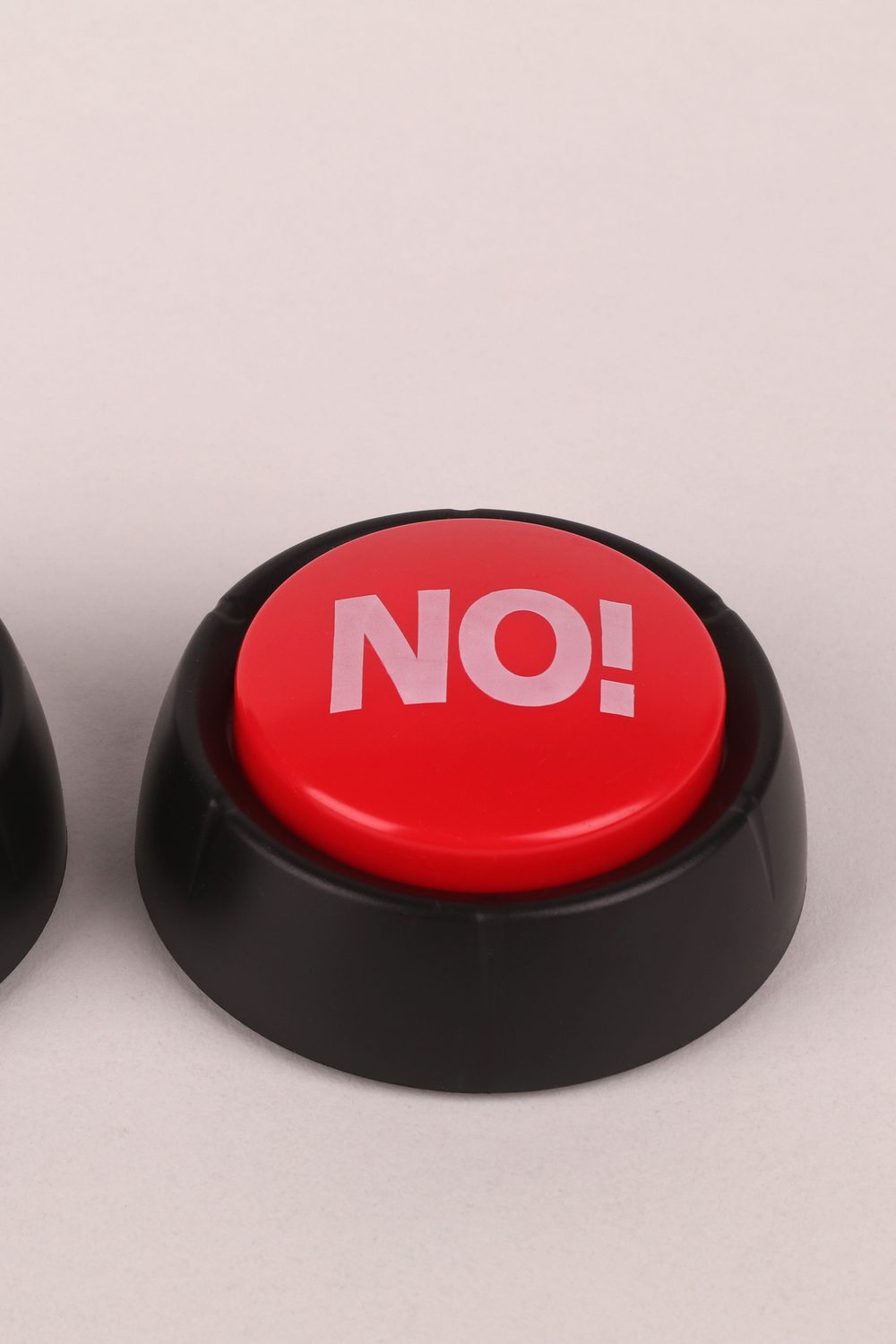
A no button is any tool — physical or digital — that lets you signal unavailability or decline a request without having to type an explanation, feel guilty, or get pulled into a conversation. The term originated in remote-work Slack communities around 2021 and has since split into two distinct categories.

Physical No Buttons
These are USB or Bluetooth devices that sit on your desk and change color, light up, or physically flip a flag when you’re in focus mode. Think of them as a traffic light for your attention. Popular examples include the Luxafor Flag and the Kensington status light — both covered in detail later in this post.
Digital No Buttons
These live inside your software stack: an auto-decline rule in Google Calendar, a Slack workflow that responds to DMs with a templated “I’m heads-down until 2pm,” or a one-click “Not now” button inside project management tools like ClickUp or Asana. Reclaim.ai, for instance, added a literal “Decline & Protect” button to its calendar assistant in 2023.
Why Your Workspace Needs One (The Real Numbers)
This isn’t about being antisocial. It’s about math.
- Basex Research estimates unnecessary interruptions cost the U.S. economy roughly $588 billion annually in lost productivity.
- Gloria Mark’s UC Irvine studies found that once distracted, it takes an average of 23 minutes 15 seconds to return to the original task.
- A 2022 RescueTime dataset of 185,000 users showed the average knowledge worker only gets 1 hour and 12 minutes of uninterrupted focus time per 8-hour workday.
- Microsoft’s Work Trend Index found the average Teams user is interrupted by a chat, call, or meeting invite every 2 minutes during active work hours.
A no button doesn’t eliminate interruptions — it reduces the social cost of ignoring them. That’s the whole mechanism: it gives coworkers a visual or automated cue so you don’t have to personally justify every closed door.
Physical No Button Devices: A Comparison
If you’re considering hardware, here’s how the major players actually stack up as of 2024 pricing.
| Device | Price | Connectivity | Auto-Sync With Calendar/Status | Best For |
|---|---|---|---|---|
| Luxafor Flag | $59 | USB / Bluetooth | Yes (Slack, Teams, Google Calendar) | Individual desk workers |
| Luxafor Orb | $49 | USB / Bluetooth | Yes | Minimalist desks |
| Embrava Blynclight | $59.99 | USB | Partial (manual toggle mainly) | Call-center / VoIP-heavy roles |
| Kensington Status Light | $39.99 | USB | Yes (Teams-certified) | Corporate Teams users |
| Busylight UC | $79 | USB | Yes (wide UC platform support) | Enterprise/IT-managed fleets |
The Luxafor Flag wins on price-to-feature ratio for most home offices. If your company already runs Microsoft Teams at scale, the Kensington device is worth the extra cost because IT can push status sync policies across the whole fleet.
Digital No Buttons: Software That Declines For You
Hardware only works if people can see it — which is useless for fully remote teams. Digital no buttons solve this by acting on your behalf inside the tools people actually check.

Calendar-Level Solutions
Reclaim.ai (free tier, Pro at $18/user/month) auto-declines meetings that conflict with blocked focus time and sends a templated response explaining why. Clockwise ($0 for individuals, $8-14/user/month for teams) does something similar but focuses more on rearranging meetings rather than outright declining.
Chat-Level Solutions
Slack’s native “Do Not Disturb” combined with a custom Workflow Builder automation can auto-reply to any DM with a canned message and a countdown timer (“Back at 2:15pm”). This takes about 15 minutes to set up and costs nothing extra on a paid Slack plan.
Browser-Level Solutions
Extensions like StayFocusd or Freedom ($6.99/month) act as a no button for websites and apps themselves, blocking access during defined focus blocks.
How to Build Your Own No Button for Under $25
If you’re technically inclined, a DIY version costs a fraction of commercial hardware and can be customized to trigger from any app via webhook.

- Buy the parts: A Raspberry Pi Pico W ($6) and an RGB LED module ($4) or a WS2812B LED strip segment ($8). Total: roughly $10-18 including a USB cable.
- Flash MicroPython onto the Pico using the free Thonny IDE.
- Write a simple script (under 40 lines) that listens for a webhook POST request and changes the LED color based on payload — red for “do not disturb,” green for “available.”
- Connect it to Zapier or Make.com (free tiers available) so your calendar status or Slack status change triggers the webhook automatically.
- Mount it somewhere visible — top of your monitor or webcam ring light — using a $3 adhesive mount.
Total build time: about 90 minutes for someone with basic soldering-free electronics experience. Total cost: under $25, versus $59+ for a commercial unit, with the added benefit of custom trigger logic.
Common Mistakes People Make With No Buttons
Most no button systems fail within two to three weeks. Here’s why, and how to avoid it.
- Mistake 1: Never explaining the system to coworkers. A red light means nothing if nobody knows the code. Fix: send a one-time team message or Loom video (2 minutes is enough) explaining what each color/status means and when it’s okay to override it.
- Mistake 2: Answering messages anyway while the button is “on.” This trains your team to ignore the signal entirely because they’ve learned it’s not real. Fix: treat the red light like a closed office door — if you break your own rule more than once a week, adjust your focus block times instead of the policy.
- Mistake 3: Using it to avoid all collaboration. If your status is red 7 hours a day, you’re not protecting focus — you’re becoming a bottleneck. Fix: cap dedicated no-button time at 3-4 hours daily, leaving clear windows for sync work.
- Mistake 4: Choosing hardware with no software integration. A manual-toggle light that doesn’t sync to your calendar gets forgotten within days. Fix: prioritize devices or scripts that auto-trigger from calendar events, not manual button presses.
No Button Etiquette for Teams
A no button only works as a shared social contract, not a unilateral gadget. Before rolling one out team-wide, agree on three things explicitly.

Define the Override Rule
Every team needs an emergency exception. A common standard: true emergencies (system outage, client escalation, safety issue) can interrupt regardless of status. Everything else waits. Write this down in your team wiki — verbally agreeing isn’t enough because it gets forgotten within a month.
Set Expected Response Windows
Instead of “I’m unavailable,” specify a return time: “Back in 47 minutes” is more respected than an indefinite red light, because it gives the requester a mental placeholder instead of anxiety.
Review the System Monthly
Teams that keep no button systems long-term (Buffer and Doist are two public examples) review usage patterns monthly — checking if certain people never use it, or if it’s being abused to avoid legitimate collaboration — and adjust the rules accordingly.
What If Your Boss or Office Culture Doesn’t Respect It?
This is the most common objection, and it’s a legitimate one — a light on your desk means nothing if your manager barges in anyway.

- What if my manager ignores the signal? Have a direct, data-backed conversation. Point to the 23-minute refocus cost and propose a trial period (2 weeks) with defined “emergency only” interruption criteria. Managers respond better to trials than permanent policy asks.
- What if I’m in an open-plan office with no walls? Physical hardware still works — visibility is actually higher in open offices, since a lit-up device is more noticeable than a closed laptop. Pair it with headphones as a secondary visual cue.
- What if my role requires me to be always-reachable (support, on-call)? Use tiered signals instead of binary on/off — amber for “reachable but slower,” red reserved only for meetings or deep work blocks under 90 minutes.
- What if coworkers think it’s a gimmick and mock it? Let the results speak. Track your own output for two weeks with and without it using RescueTime or Toggl, then share the concrete before/after numbers rather than arguing the concept abstractly.
No Buttons for Remote and Hybrid Teams
Remote workers face a unique problem: there’s no physical door to close, and a colored light on your desk is invisible over Zoom. Digital-first no buttons matter more here than hardware.
Status Automation Across Tools
Use a service like Zapier ($19.99/month for the Starter plan, though the free tier covers basic use) to sync your Google Calendar “Focus Time” blocks automatically to Slack status, updating both simultaneously so you don’t have to manually flip four different switches.
Async-First Norms
Companies like GitLab and Zapier itself run fully async, where the default expectation is a 24-hour response window unless flagged urgent. This removes the need for a moment-to-moment no button because the entire culture is built around delayed response as the norm, not the exception.
Time-Zone Aware Signals
For distributed teams, tools like World Time Buddy combined with a calendar plugin can show teammates not just “busy” but “asleep” or “outside working hours,” which functions as a permanent, honest no button for after-hours contact.
Measuring Whether Your No Button Is Actually Working
Don’t just install a light and assume it’s helping. Track it for 30 days using these three metrics:
- Uninterrupted focus blocks per day — measured via RescueTime or manual logging. Target improvement: from a baseline of roughly 1 hour 12 minutes to 2.5-3 hours.
- Number of after-hours messages received — should drop noticeably within 2-3 weeks if the digital signal is respected.
- Self-reported task-switching frequency — a simple daily 1-10 rating logged in a notes app; look for a downward trend.
If none of these move after a month, the problem usually isn’t the tool — it’s inconsistent personal use or lack of team buy-in, both covered in the mistakes section above.
Getting Started This Week
You don’t need to buy hardware or write code to test the concept. Start with the cheapest, fastest version: set your Slack or Teams status to a custom “🔴 Focus until 11am” message tomorrow morning, block the time on your calendar, and actually decline anything that lands in that window. Run it for five working days and track how many interruptions you fend off without guilt.
If it works — and for most people it does within the first week — invest in whichever version fits your setup: a $39 Kensington light if you’re office-based and Teams-heavy, Reclaim.ai if your real problem is calendar sprawl, or the DIY Raspberry Pi build if you want full control over the triggers. The tool matters far less than the discipline of actually using it consistently and telling the people around you what it means. That’s the entire mechanism — not the button itself, but the boundary it gives you permission to enforce.