Monitor Height: The 20-Second Ergonomic Fix
If your neck aches by lunchtime, your monitor is probably the problem — not your chair, not your posture, and not your age. Most home-office monitors sit far too low, and the fix takes about twenty seconds once you know what to look for. No new furniture, no tools, no ergonomic course. Just one measurement and one adjustment.
The 20-second fix: top of the screen at eye level
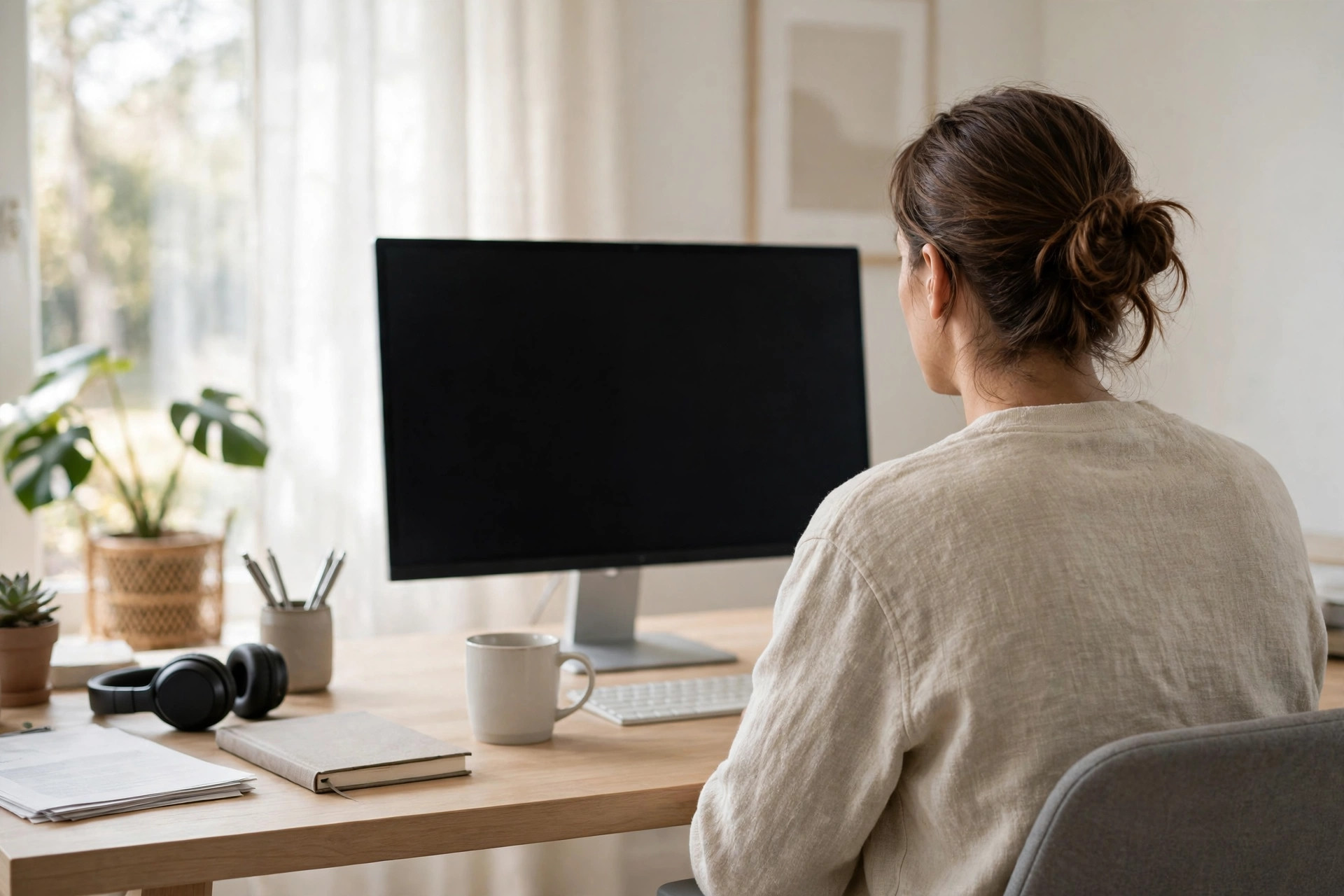
Here is the whole rule: sitting in your normal working position, the top edge of your monitor should sit at — or just below — your eye level, and the screen should be about an arm’s length away. That is it. The rest of this guide just helps you get those two things right.
Why the top edge? Your eyes naturally rest looking slightly downward, so your gaze falls across the middle at a comfortable angle. Put the top edge above your eyes and you tilt your head back all day; put it well below and you spend eight hours looking down, which is exactly how necks get sore.
Do the check right now. Sit the way you normally sit — not the upright pose you use when someone mentions posture, the real one — and look straight ahead. If you can see the top bezel without moving your eyes down, the screen is too high. If the top of the screen is around your chin or chest, it is too low. Most people find theirs is too low.
How to measure your correct monitor height
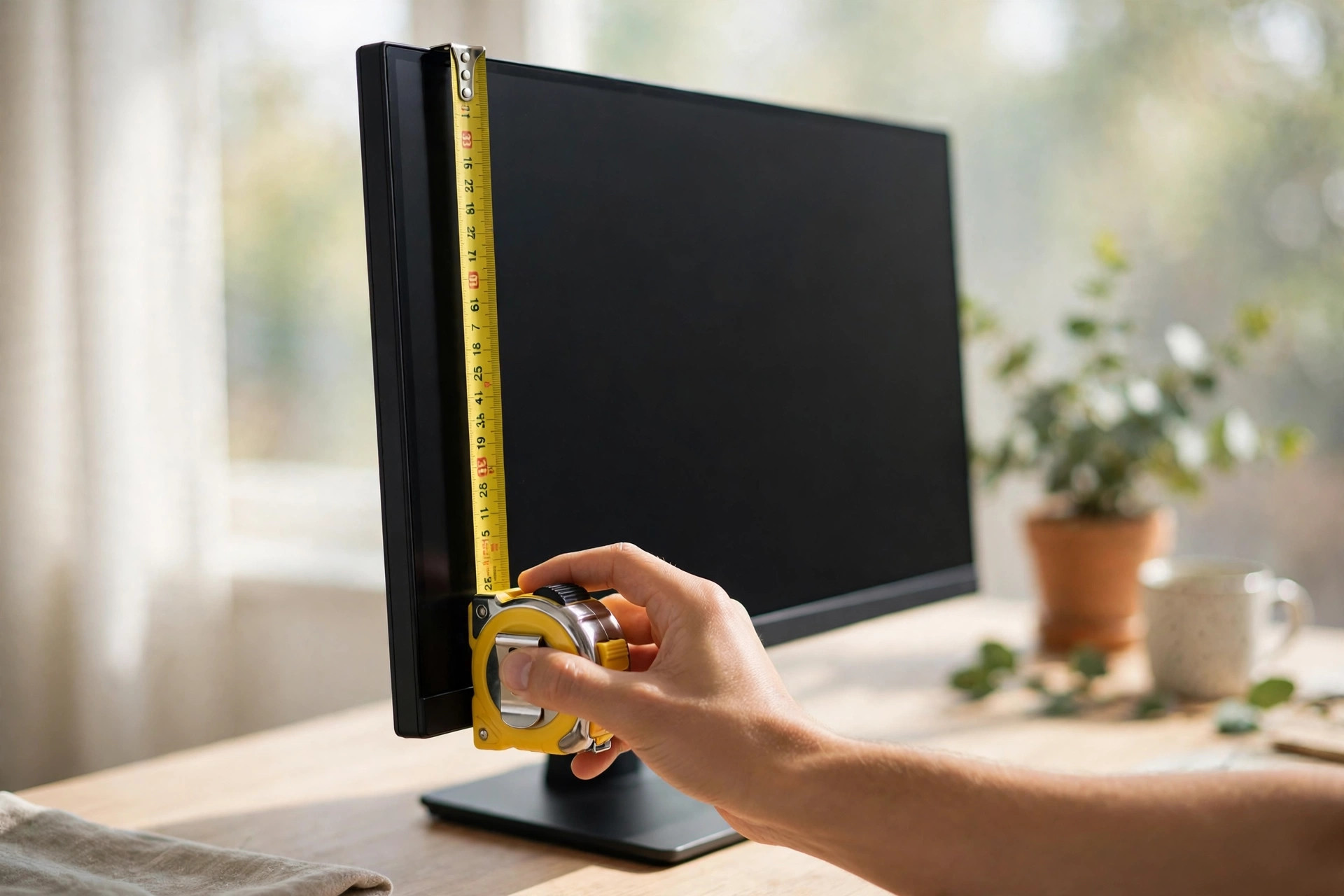
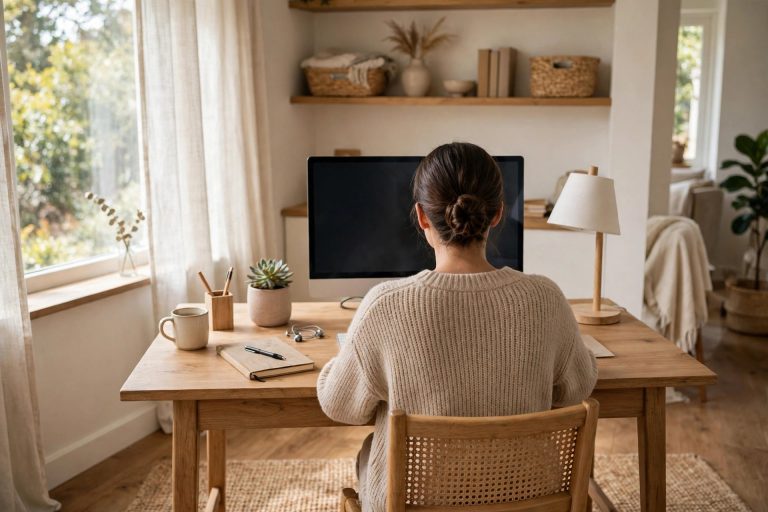
Sit in your chair, feet flat on the floor, back against the chair back. Close your eyes, relax, and look straight ahead as if at the horizon. Open your eyes: the point on the wall you are looking at is your eye level. Mark it with a sticky note.
Compare that mark with the top edge of your monitor. The top edge should be level with the mark, or up to about 5 centimetres below it. If the gap is bigger than that, raise the screen until it matches.
Distance matters as much as height. Hold your arm out straight: your fingertips should just about touch the screen. For most people that is 50 to 70 centimetres. Too close and your eyes work too hard; too far and you lean in, which quietly undoes the height fix.
5 signs your monitor is too low

A low monitor is the most common setup mistake in home offices, and your body usually reports it before you notice the screen itself:
- A dull ache at the base of your skull by mid-afternoon. Looking down for hours loads the small muscles at the back of the neck, and they complain late in the day.
- Rounded shoulders by 3 p.m. When the screen is low, the head drifts forward and the shoulders follow. The slump is a symptom, not a habit to fix with willpower.
- You hunch over the keyboard to read small text — your body closing the distance because the screen is in the wrong place.
- Tension headaches starting at the back of the head. Neck strain is one of the most common headache triggers at a desk.
- Your chin tucks toward your chest when you concentrate. Watch for it next time you are deep in a document — it is the clearest visual tell.
One of these on its own might be something else. Two or three together, every working day, points at the monitor. Raise it and give it a week.
3 signs your monitor is too high
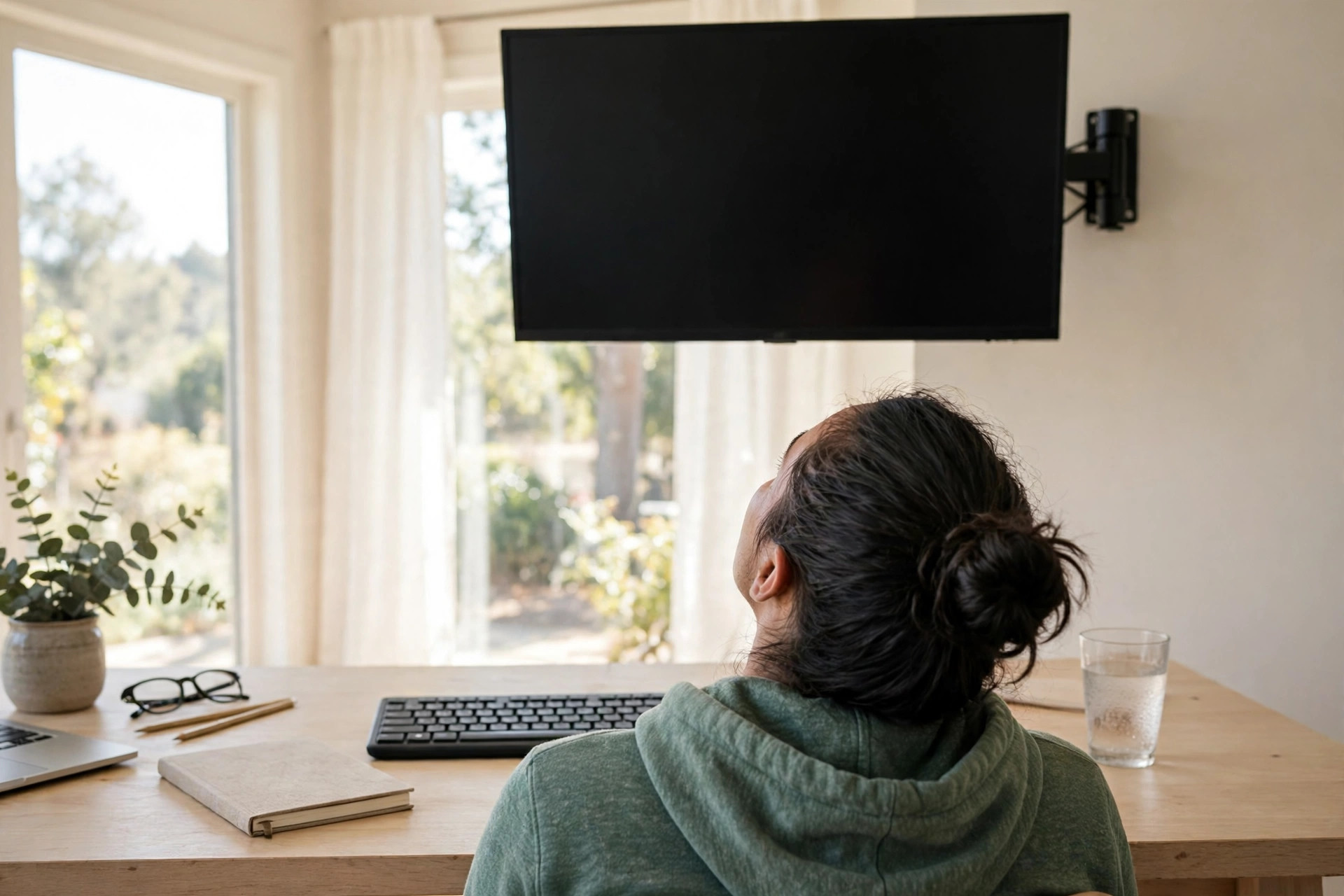
Too high is rarer — usually after someone overcorrects, or when a monitor sits on a tall shelf or a docked laptop on a high stand:
- Dry, tired eyes. Looking slightly upward opens the eyes wider, so they dry out faster. If your eyes feel gritty by late morning, check the height before buying eye drops.
- An ache at the front of the neck or under the jaw. Tilting the head back loads the front of the neck, the opposite pattern to a low screen.
- You lift your chin to read the top of the screen. Menus and browser tabs live up there; if reaching them means moving your head, the screen is too high.
The fix is the same measurement in reverse: lower the screen until the top edge sits at or just below eye level, and tilt it back about 10 to 20 degrees so the top leans slightly away from you.
Laptop users need a riser, not willpower
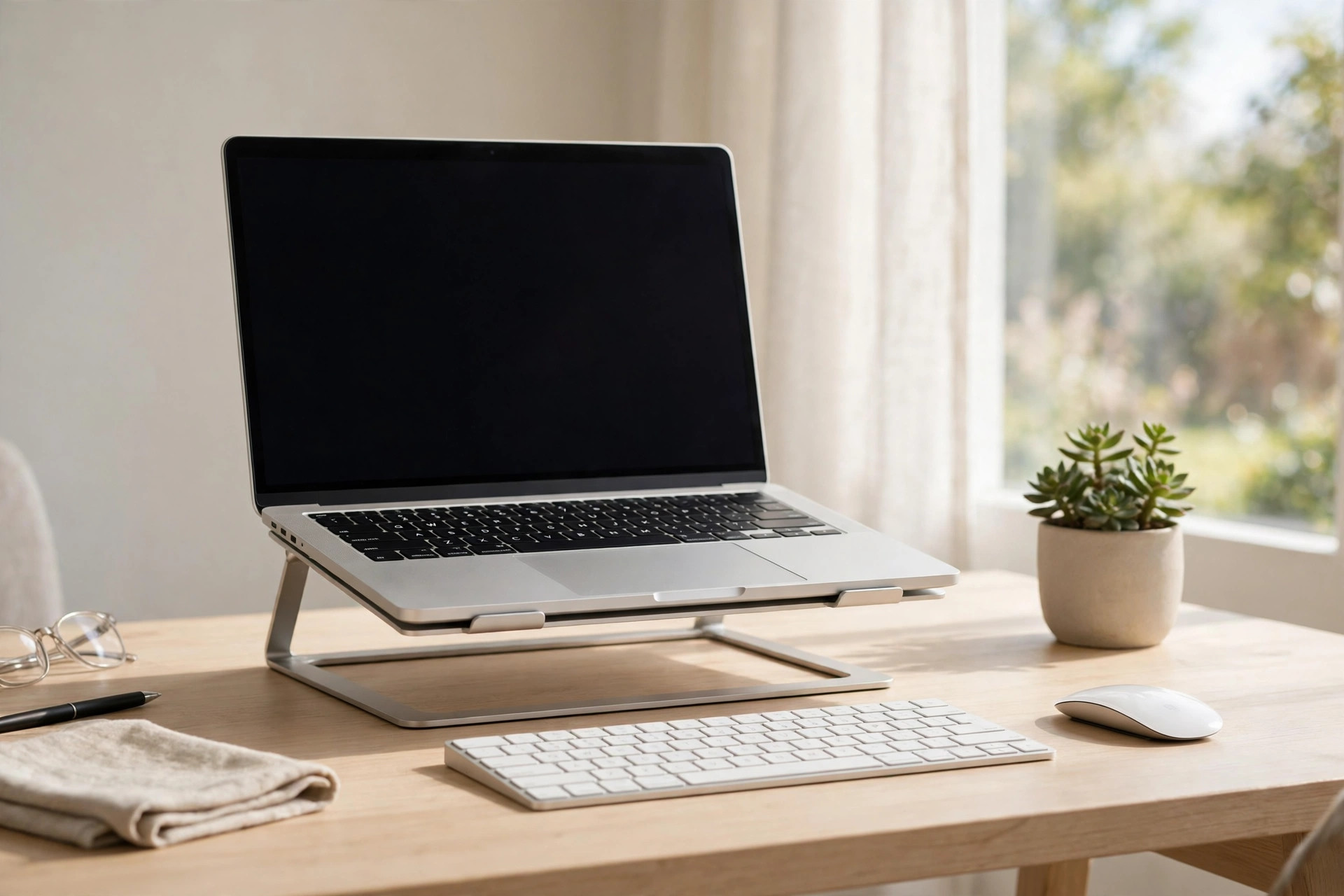
A laptop is an ergonomic compromise built into the hardware: the screen and keyboard are attached, so the screen can never be at eye level while the keyboard is at elbow height. One of them always loses, and it is usually the screen — which is why laptop users get neck pain more than anyone else at a desk.
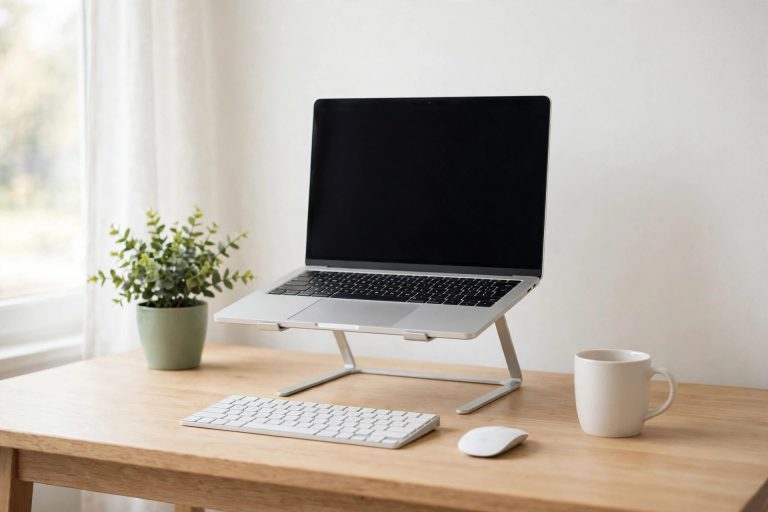
The fix is a riser. A simple laptop stand lifts the screen 10 to 15 centimetres, which is usually enough to bring the top edge near eye level, and then you type on a separate keyboard. That second part matters: without an external keyboard, a raised laptop means raised arms, and you trade neck pain for shoulder pain.
Good risers are not expensive — simple folding stands typically cost $20–$60, and a basic wireless keyboard and mouse set is often about the same again. If you work from a laptop full-time, that is the best-spending ergonomic purchase after a decent chair.
Two monitors? Height first, angle second
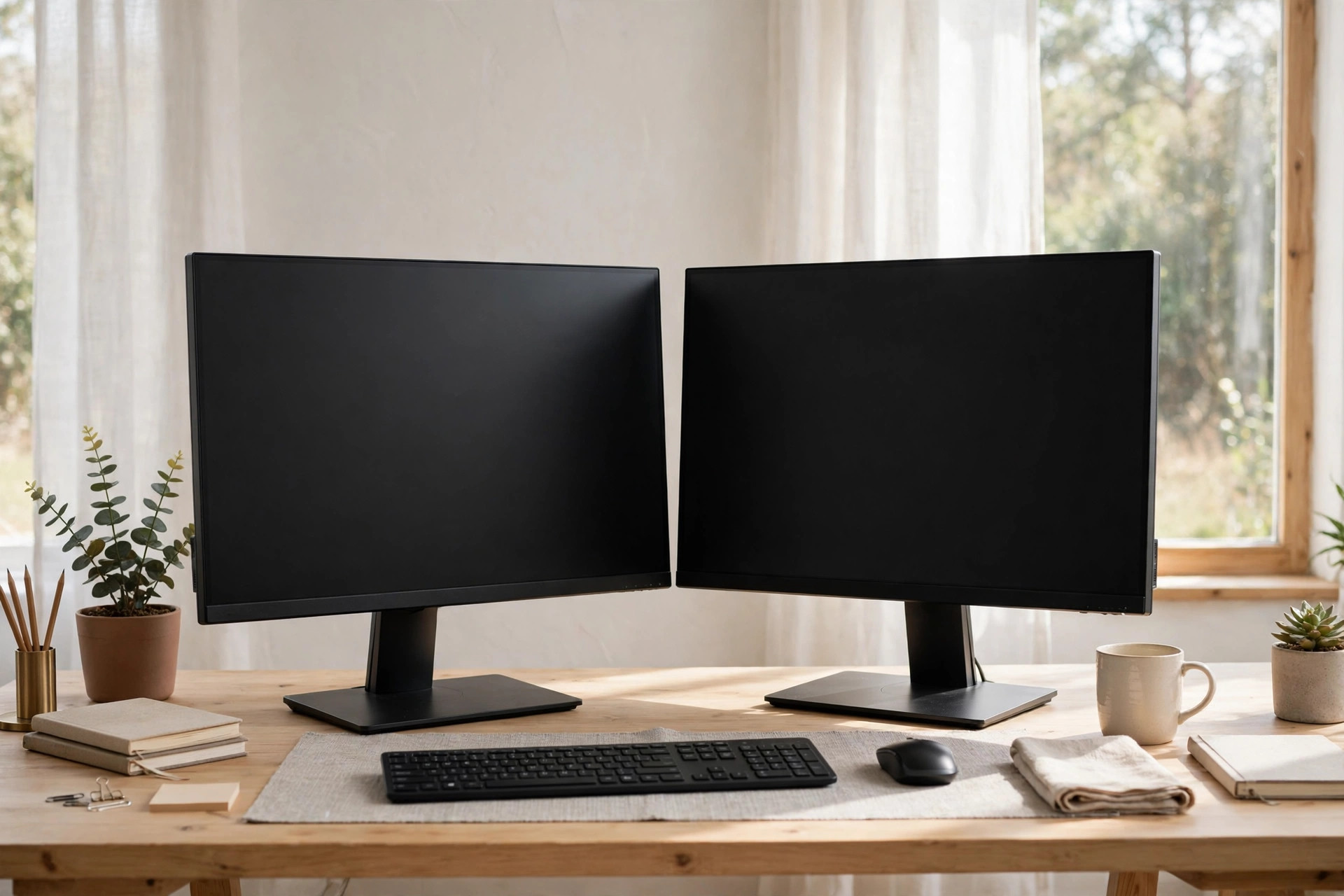
Two monitors double the chances of getting height wrong, because people usually set the second one wherever it fits and forget about it. The rule does not change: the top edge of each screen should sit at or just below eye level. A second monitor that sits 10 centimetres lower than the first will quietly pull your head down every time you glance at it.
Once the heights match, sort the angle. If you use both screens equally, put them side by side with the join in front of you, angled slightly toward you like an open book. If one is your main screen and the other is for reference — email, chat, a document you glance at — put the main screen directly in front of you and the second one off to the side at about 30 degrees.
Monitor arms vs. stands vs. a stack of books
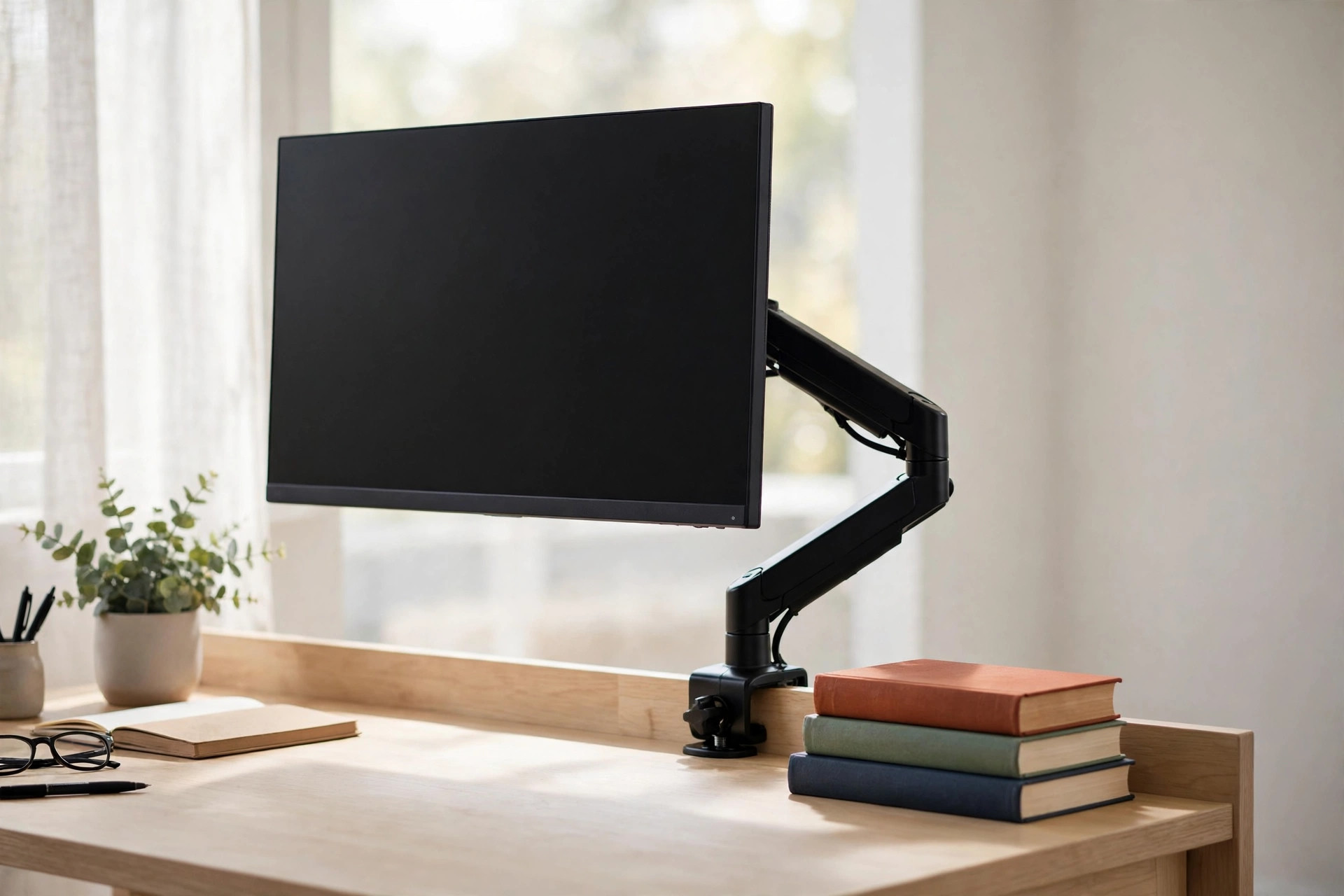
There are three honest ways to get a monitor to the right height, and the best one depends on your desk and your budget — not on how serious you are about ergonomics.
A stack of books is free and it works today — and it is the right first step: use it for a week to prove the height helps before you spend anything. It eats desk space and wobbles when you type hard, but it proves the point.
A monitor stand is the tidy version of the same idea: a fixed riser, usually 8 to 15 centimetres tall Typical prices run $25–$80 — but the height is fixed, so measure first and buy the height you need, not the one that looks right in a photo.
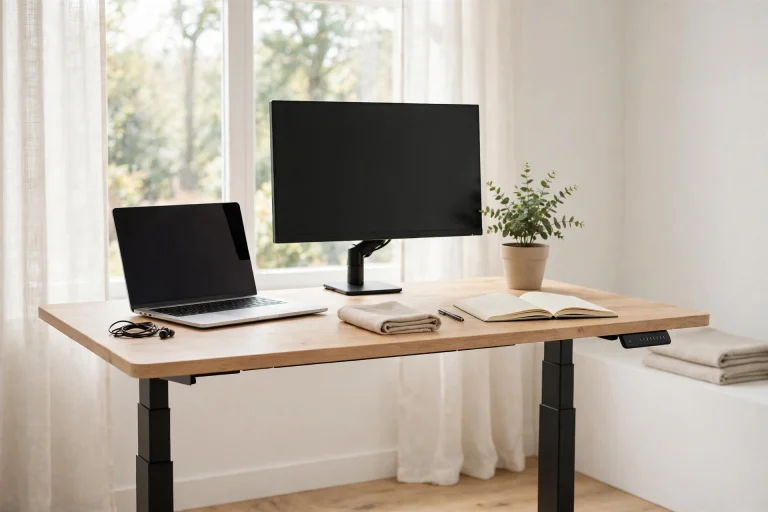
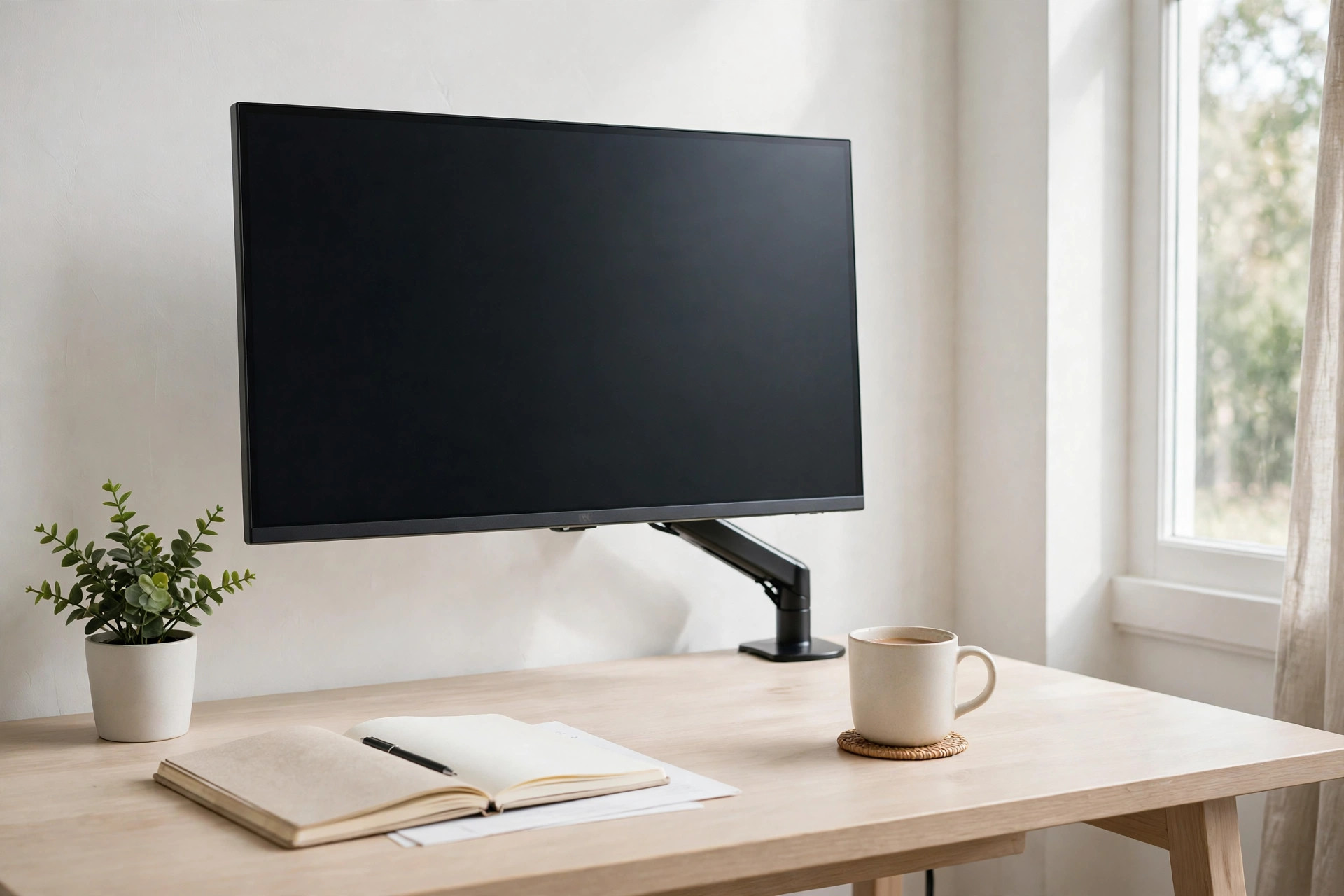
A monitor arm is the flexible option. It clamps to the back of the desk, holds the screen at exactly the height you set, and frees the desk space underneath. Most single arms cost $30–$100, and they let you change the height in seconds If you are buying one thing to fix monitor height properly, this is the one — our guide to why a monitor arm is the best $40 desk upgrade explains what to check before you buy.
Distance, tilt, glare — and the weekly check
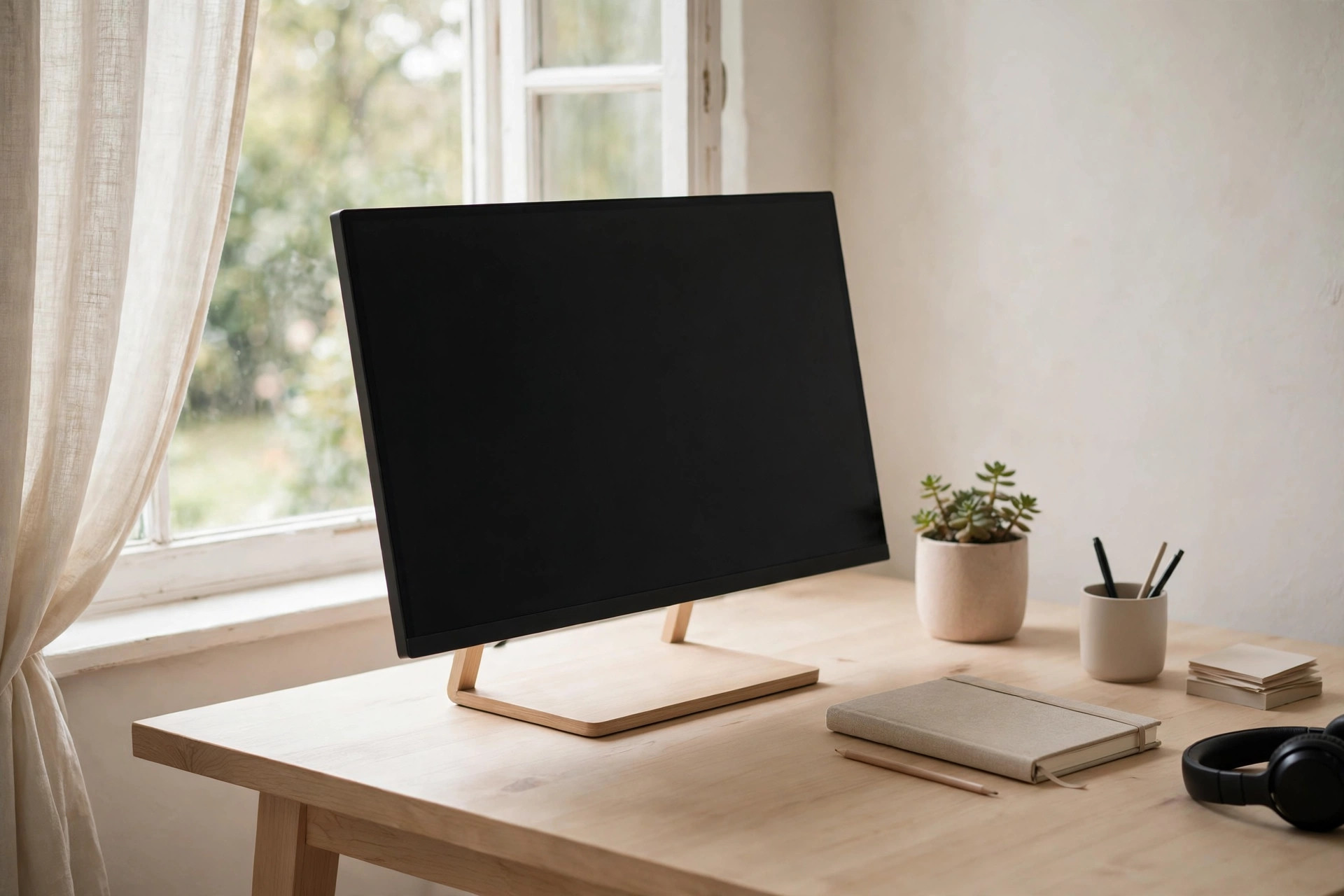
Height is the headline, but three smaller settings decide whether the fix actually feels good. Distance: the arm’s-length rule — 50 to 70 centimetres for most screens. If text looks small, enlarge it or raise the display scaling rather than pulling the screen closer. Tilt: tilt the top of the screen back about 10 to 20 degrees so it faces your eyes, not your chest. Glare: if a window or ceiling light reflects in the screen, move the monitor — a screen at right angles to a window usually wins.
Setups drift, so repeat the check weekly — it takes about a minute. Sit down the way you sit. Look straight ahead: is the top of the screen still at your eye level? Hold your arm out: can your fingertips still just touch it? Is the brightness even, with no reflections? If nothing aches after a few minutes of work, the setup is still right. If something does, one of the three settings has moved.
That is the real point of the 20-second fix: a measurement you can repeat any time your neck starts complaining. Top of the screen at eye level, an arm’s length away, tilted back slightly. Everything else — the arm, the riser, the second screen — just holds those three numbers in place.